

 09/02/2021
  4358
4358


Інтернет-маркетинг
простою мовою
Content of the article

How to install Google Analytics code via GTM on your website
Installing Google Tag Manager
To get started, you will need to register a Google Tag Manger account using the link https://tagmanager.google.com/. Follow the link and click create account

In the next window fill in:
- Account name – we give a clear name so that you don’t get lost in the future and effectively manage your accounts.
- Select a country.

If you wish, we allow you to transmit anonymous data to Google. We give the container a name, most often we write the domain name. As well as the target platform, depending on where the GTM will be installed: website, application, etc.
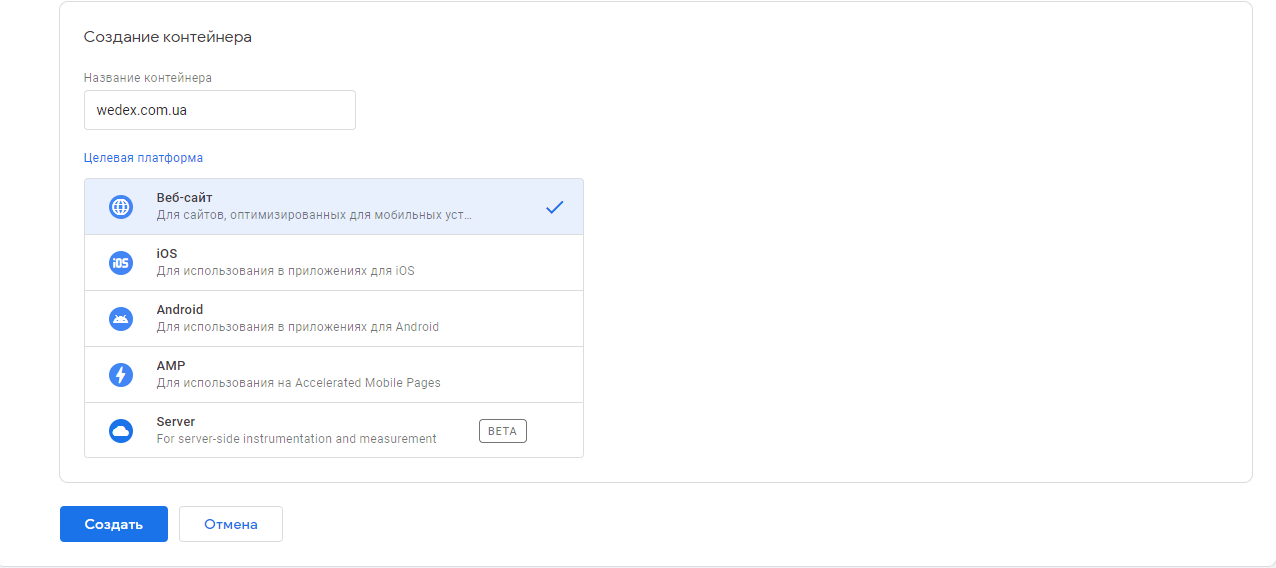
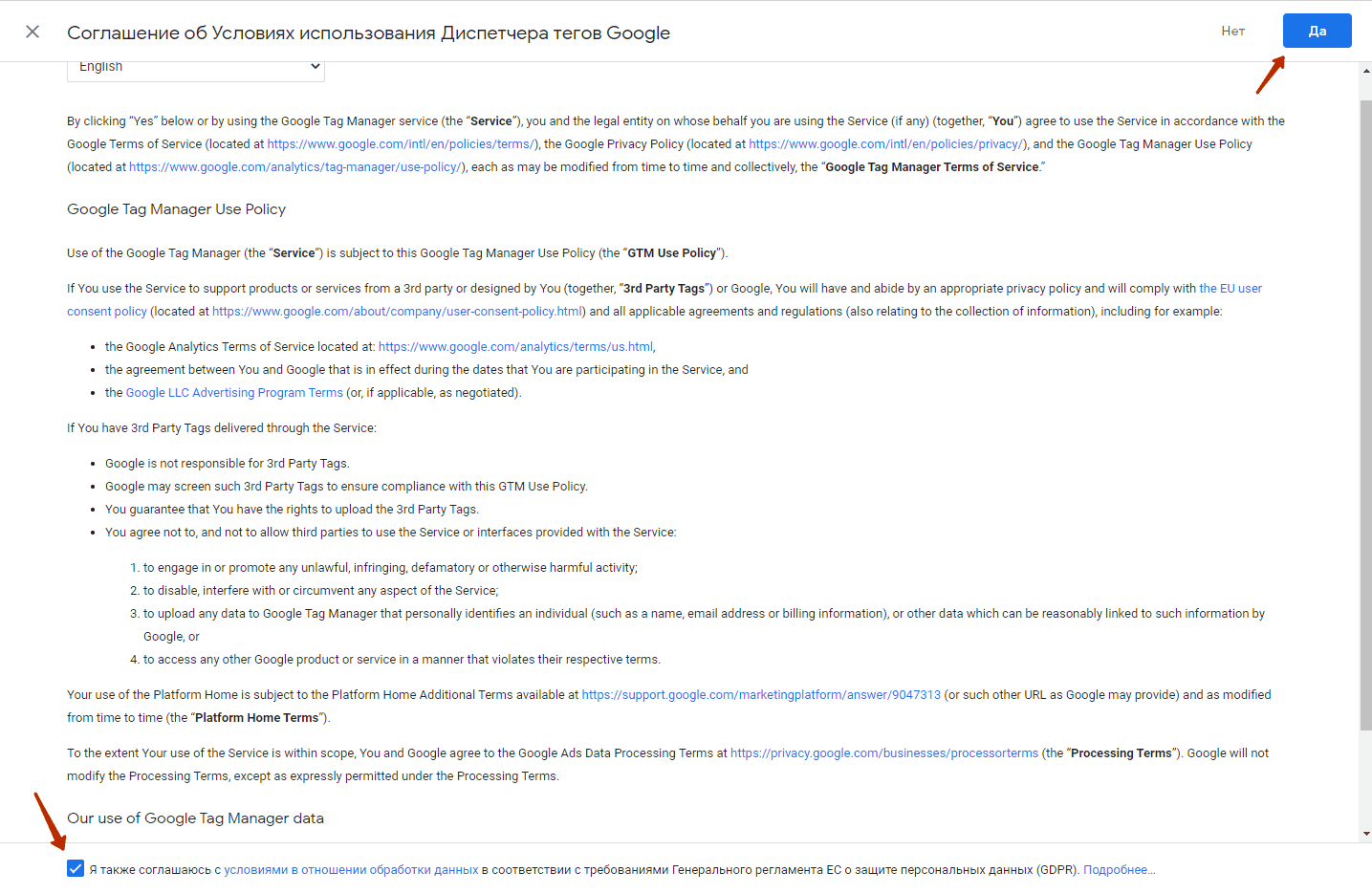
Click “Create”. In the next window we accept the user agreement.
Next, the container workspace opens with a modal window that contains codes for installing GTM on the site. Now you need to submit these codes to the developer. We draw it up in the form of technical specifications.

If you suddenly close the window with installation codes, you can always find them again by clicking on the container identifier.
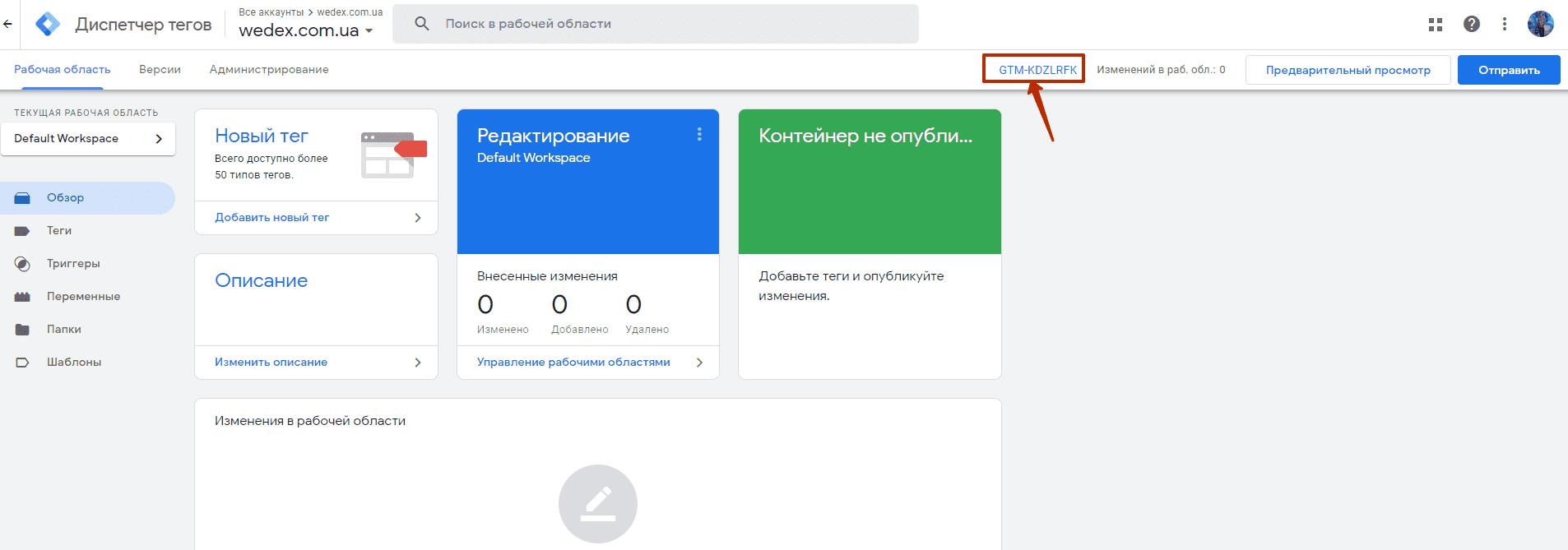
To check that the GTM code is installed correctly, you can use the browser application – Tag Assistant Legasy (by Google)

With this application, you can always quickly understand whether Google Analytics, Google Tag Manager, as well as their identifiers are installed on the site. After the programmer installs the codes on the site, a GTM with the required identifier will appear in this application. The icon will be displayed in yellow and give a 404 error. Don’t be alarmed, an empty container always returns a 404 server code. After adding the first tag, everything will be fine.


How to install Google Analytics – Universal Analytics code on a website via GTM
In the workspace, go to the “Tags” tab

Click create and give a clear name.

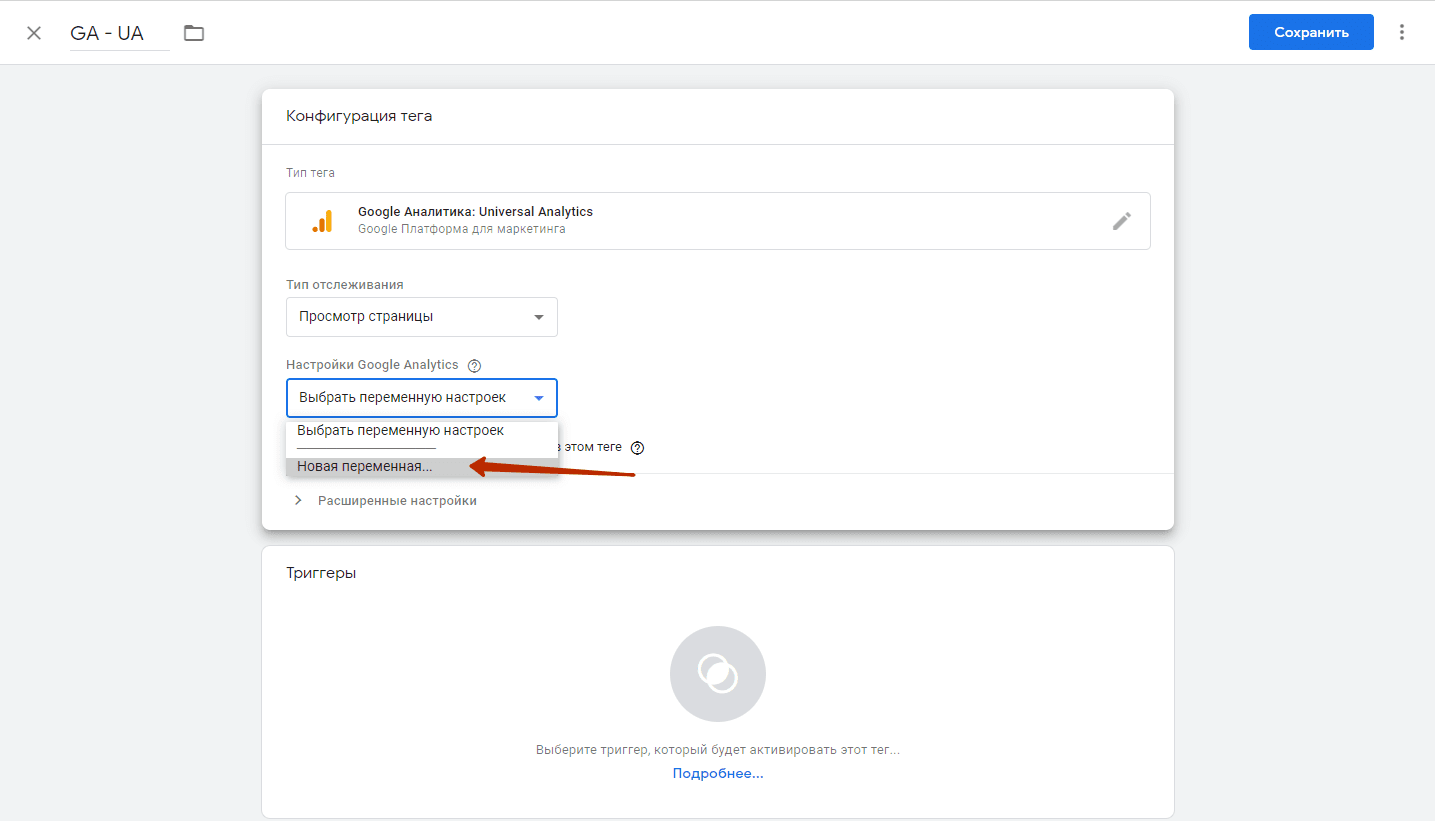
We select the tag configuration – for GA tags, standard installation codes are already entered in the system, so we only have to configure correctly.

Select the tracking type – Page View
Create and add a new variable
We give a clear name and enter the Google Analytics view ID.
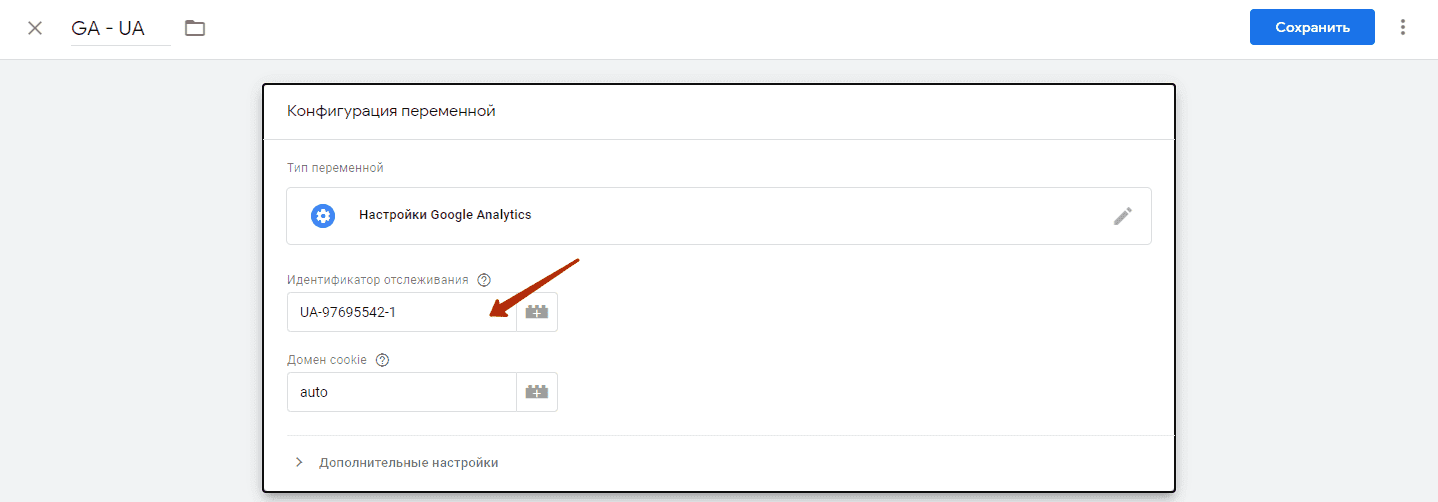
The identifier must begin with UA. You can find it in the Google Analytics view.
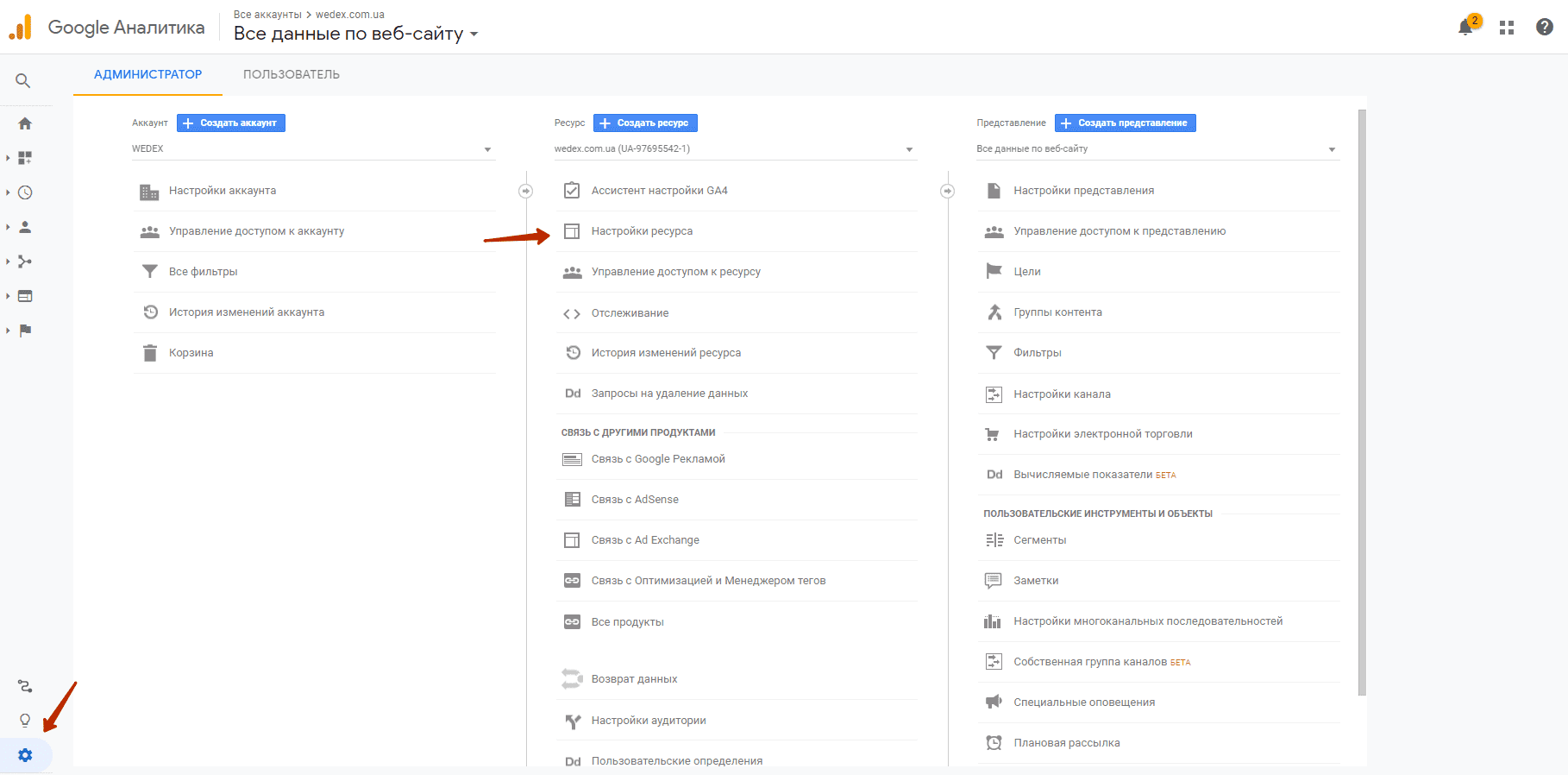
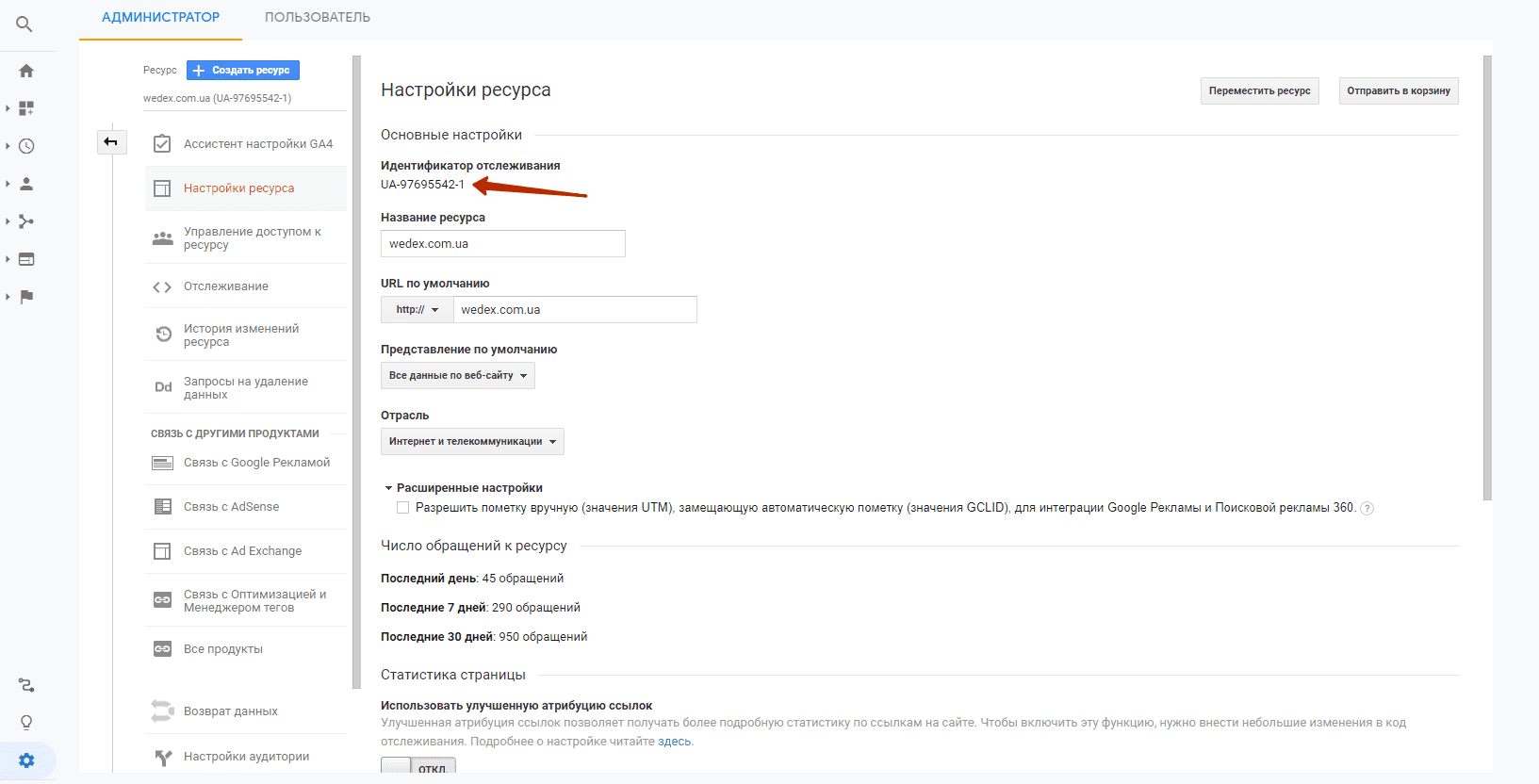
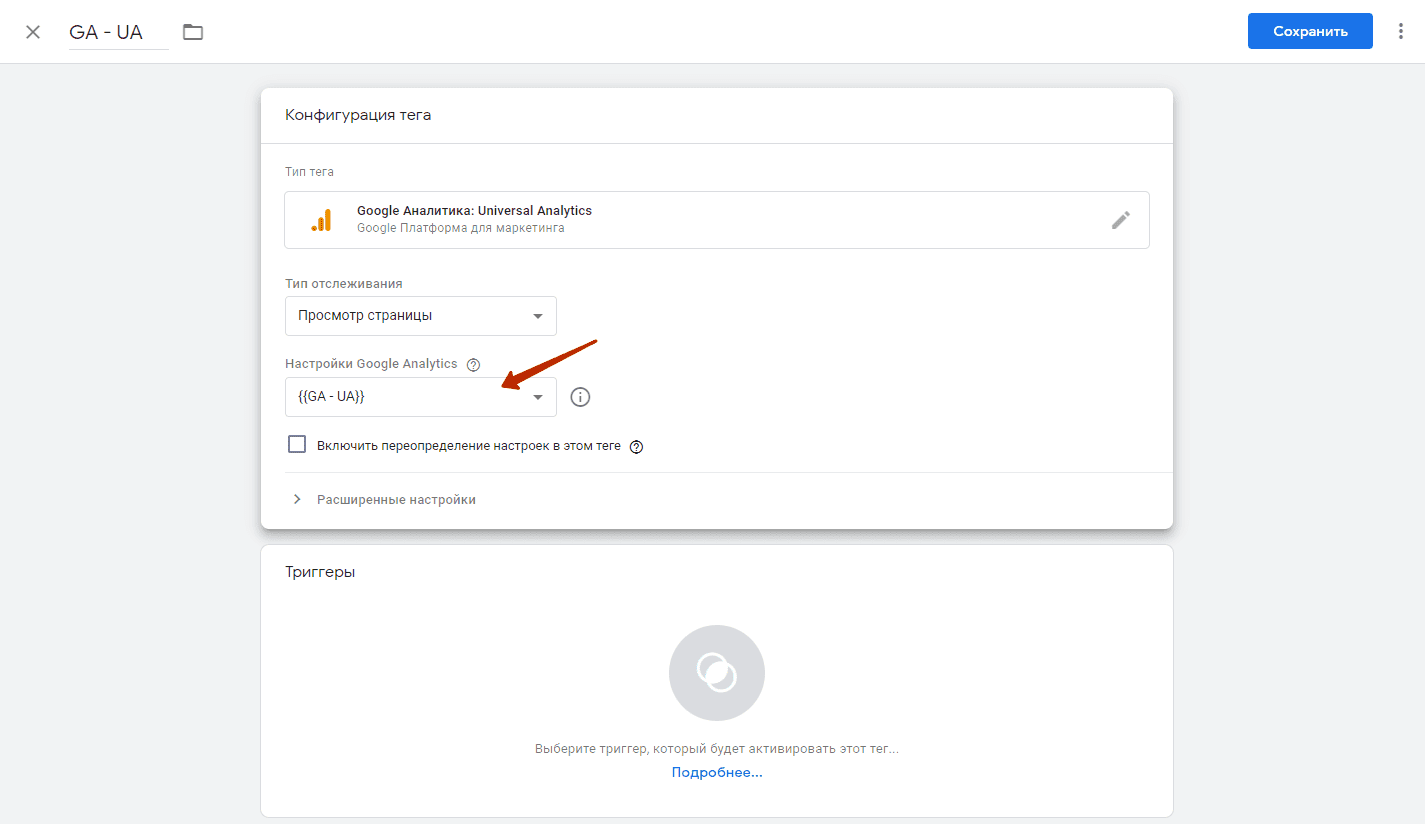
Next we save the variable. And add the tag configuration window to the “Google Analytics Settings” field.
Now let’s move on to setting up the trigger.
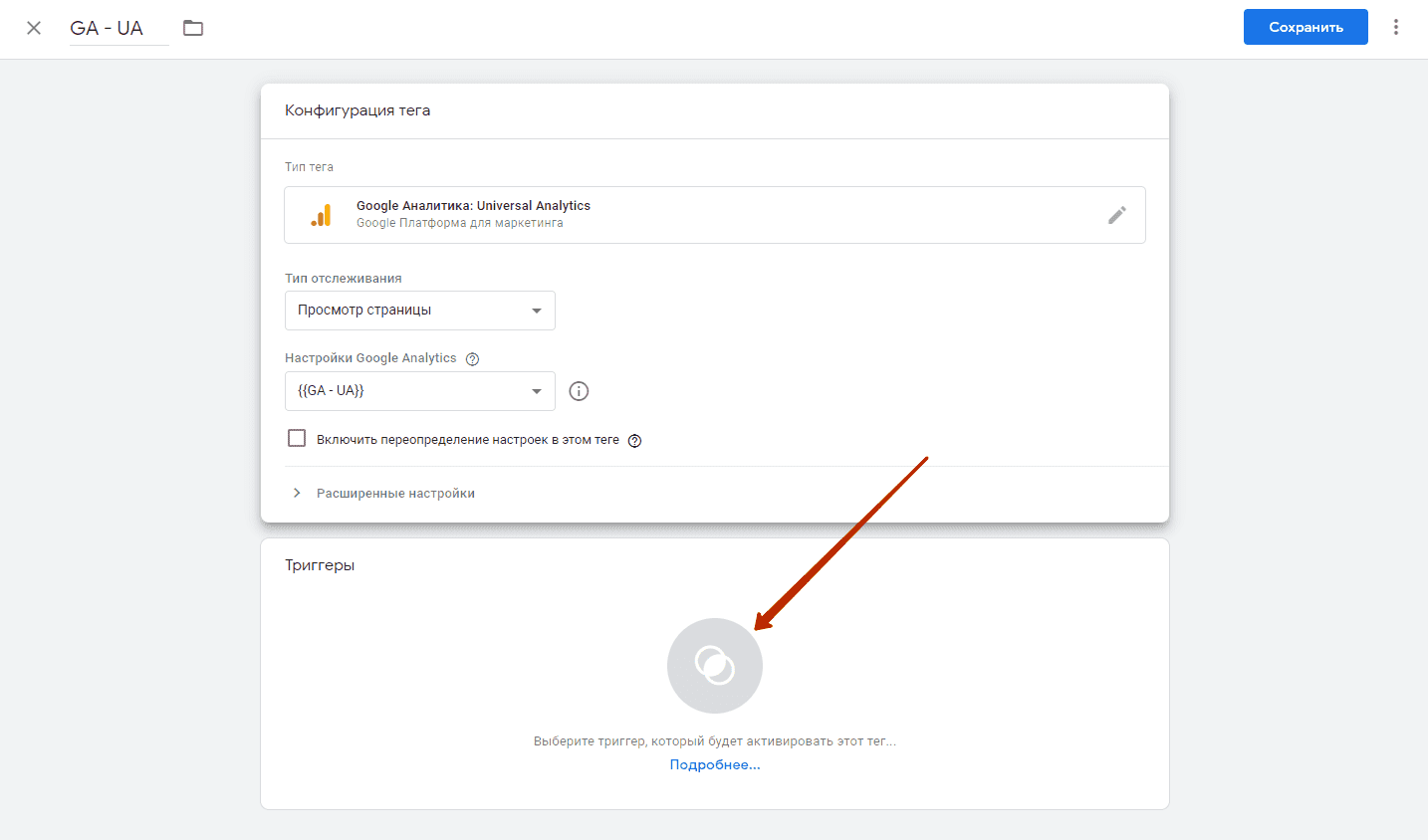
Select “All Pages”

Saving configurations
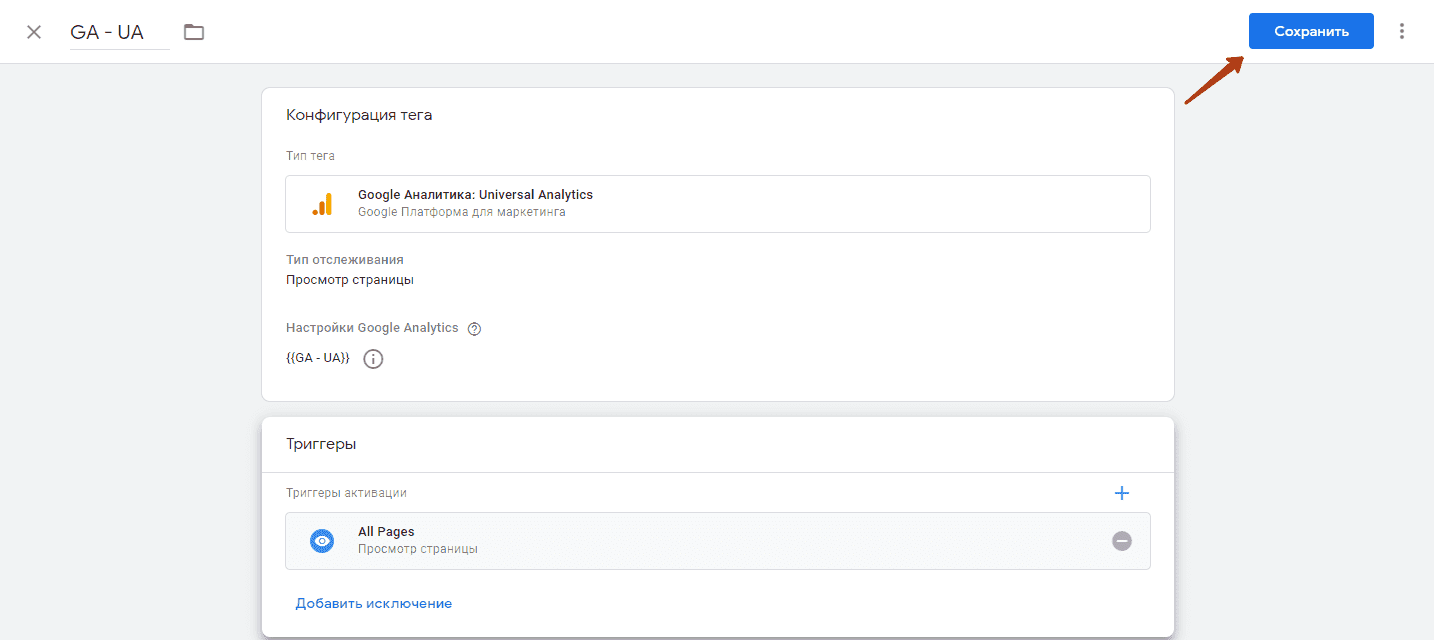
Click “Send”
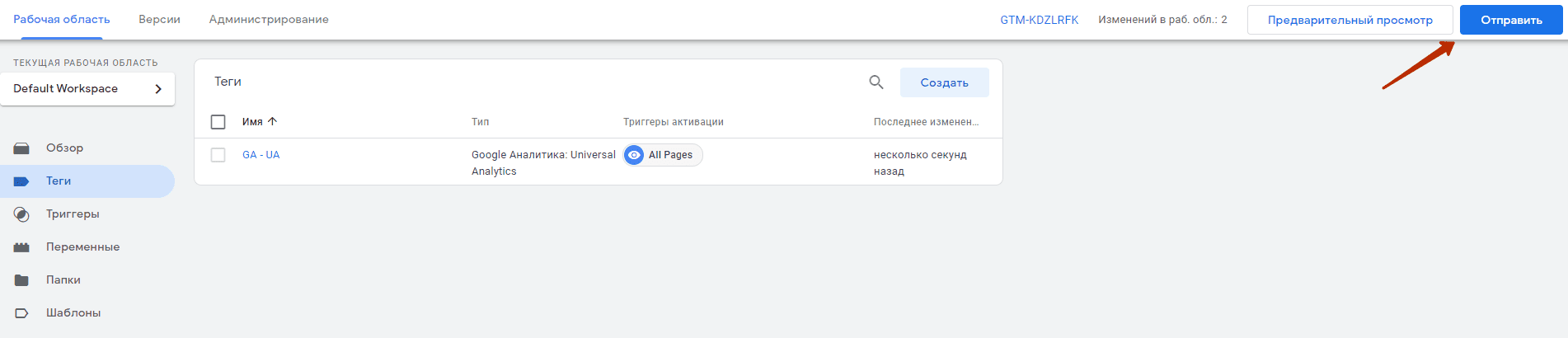
And publish the change to the container
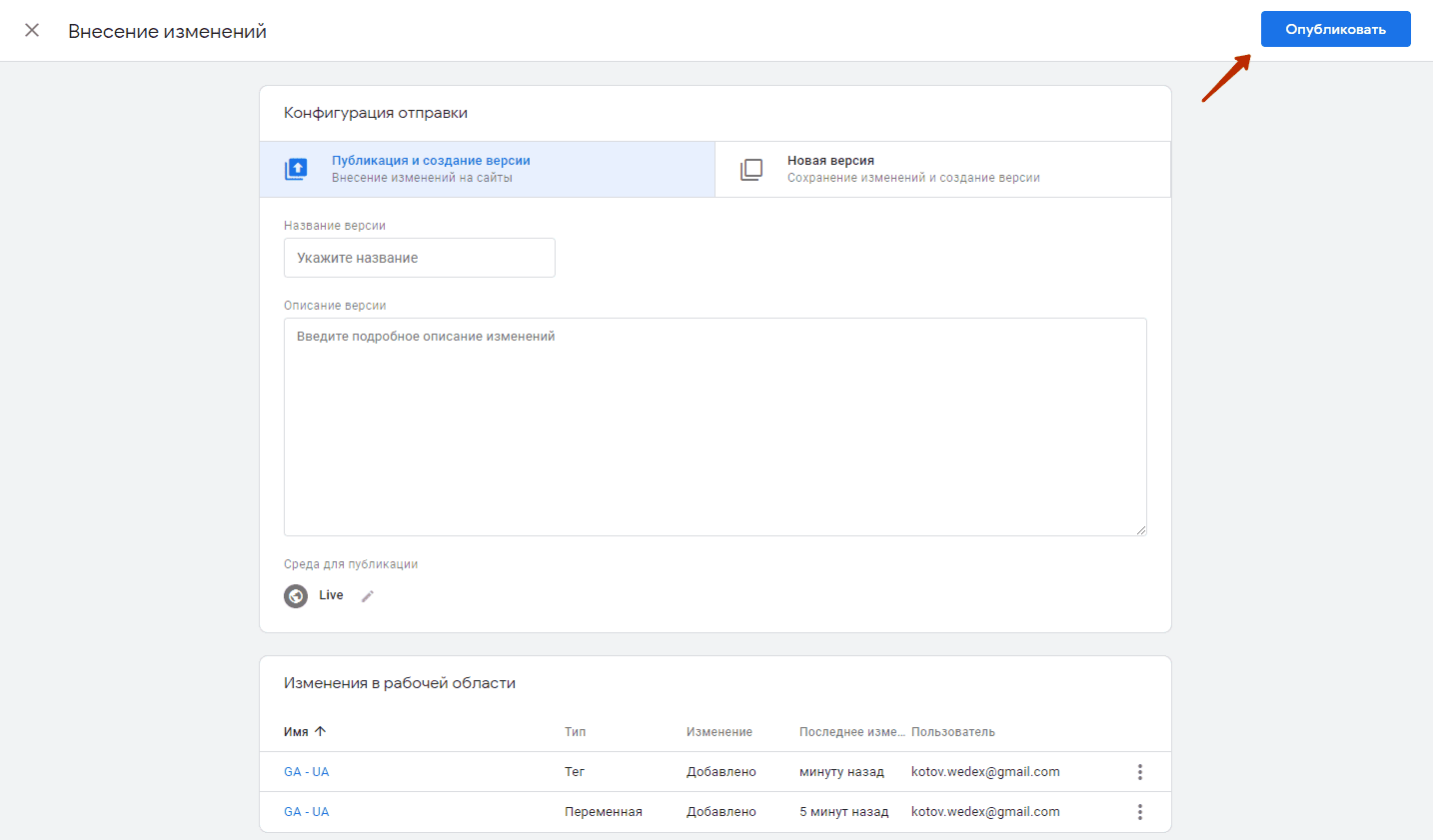
Congratulations, you have independently installed the Google Analytics – Universal Analytics counter on your website.
How to check if the GA meter is installed correctly via GTM
This can be done in several ways
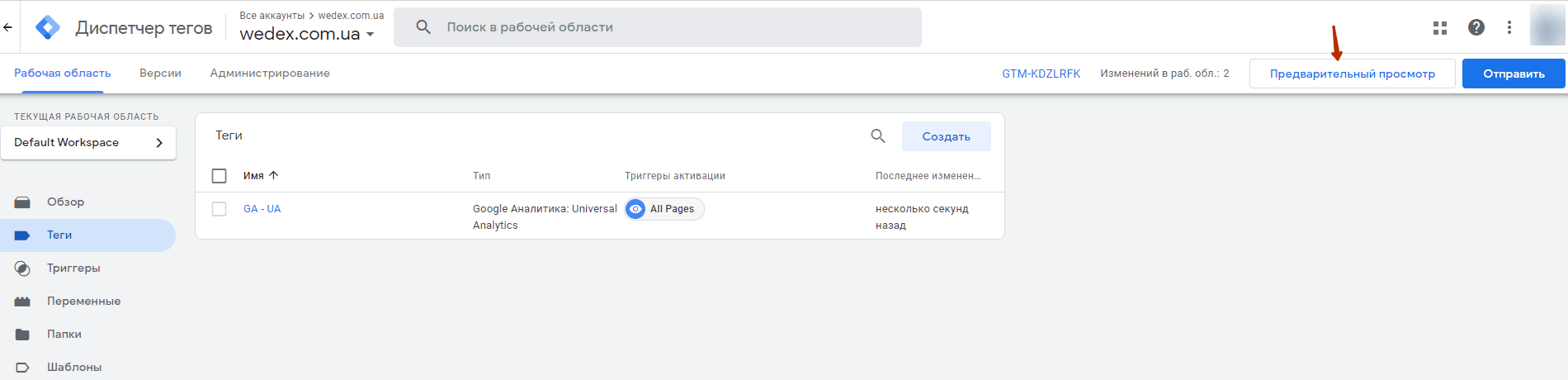
- Through the built-in debugger, transfer to analytics tools. In the work area, click on “Preview”

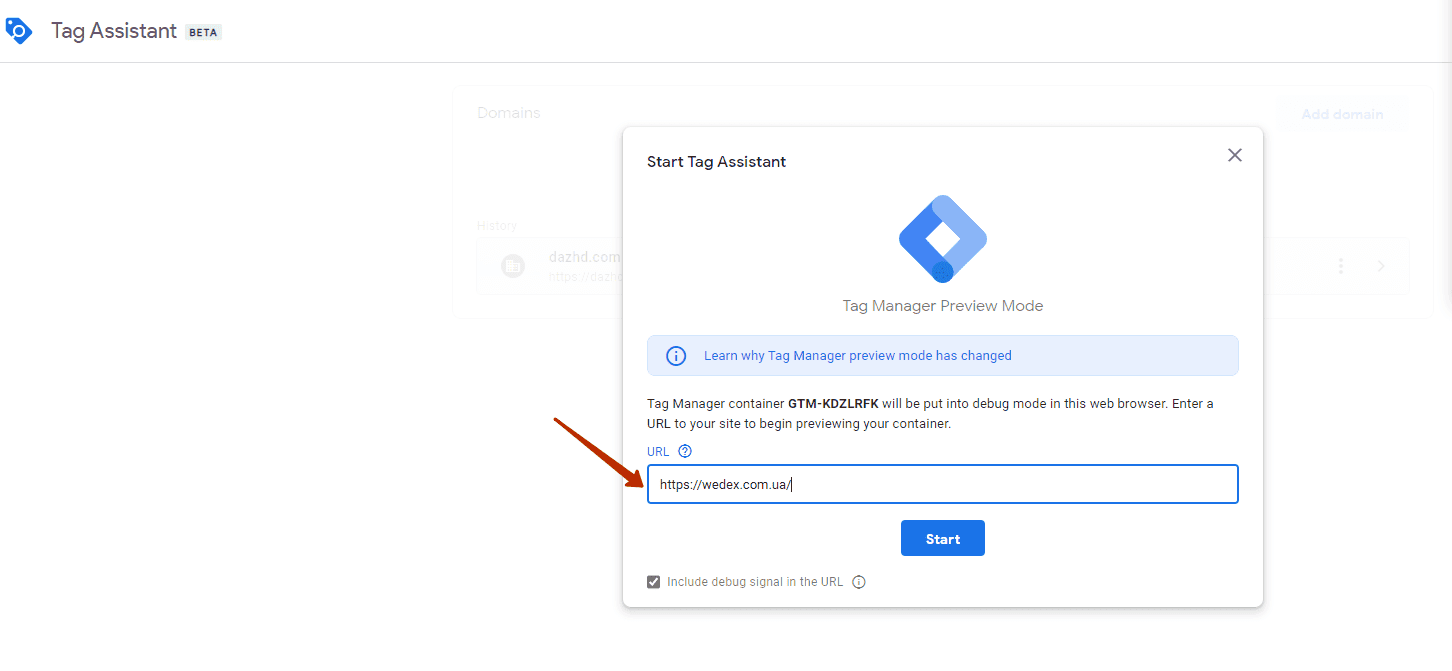
- After the transition, we enter the domain of the site on which we check the functionality of GA.

- After the “connection” we see that the Analytics tag worked

- You can also check the installation of Google Analytics in its own interface. To do this, you need to go to the website and also open an overview of the report in real time in analytics.
How to install Google Analytics 4 (GA4) code on a website via GTM?
In the workspace, click on the “Tags” tab

Click create and give the tag a name.

We select the tag configuration – for GA4 tags, standard installation codes are also already entered in the system.
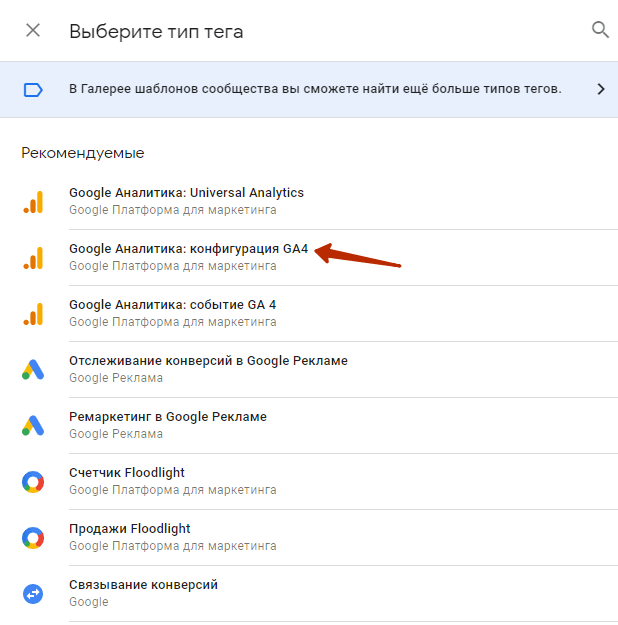
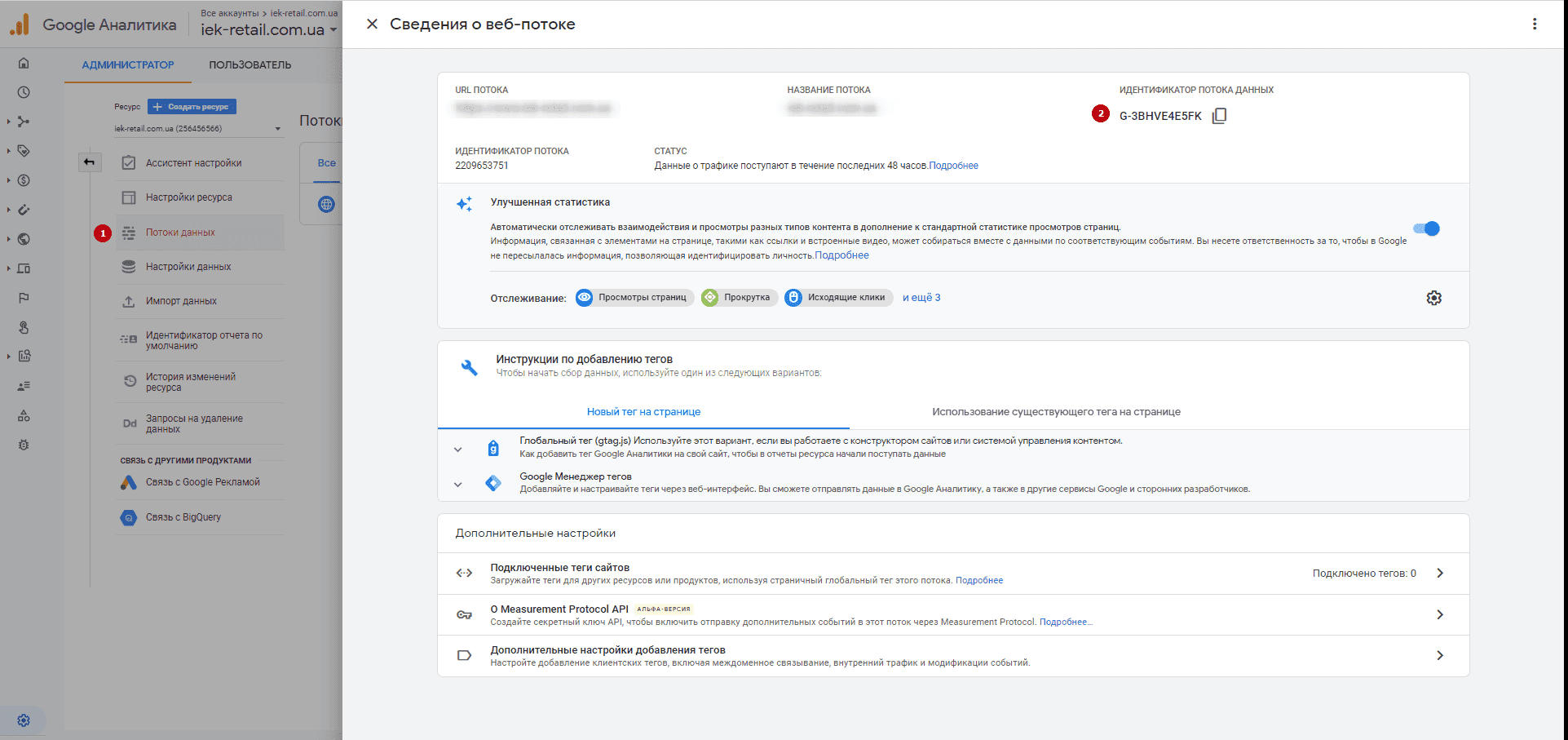
Copy the identifier from GA4 and paste it into the appropriate field.
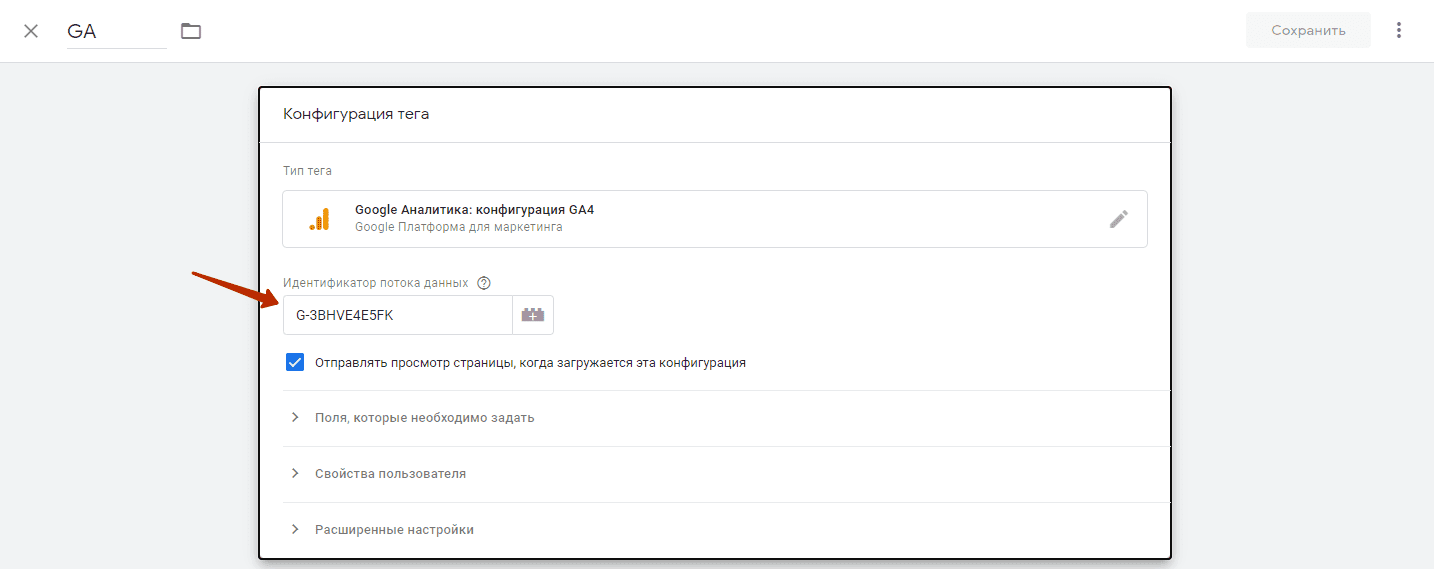
The ID can be found in the Google Analytics property settings.
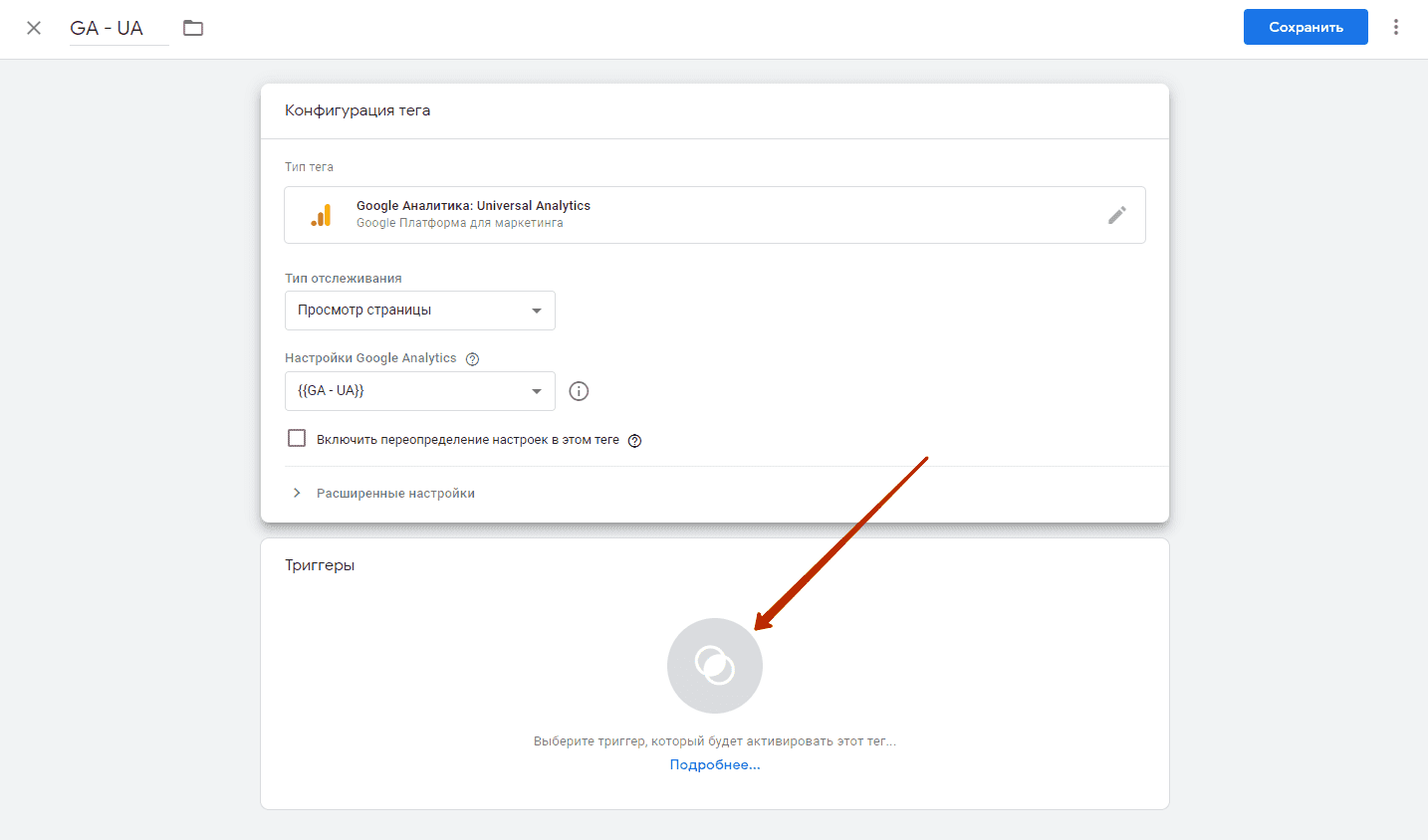
Select “All Pages”

Saving configurations
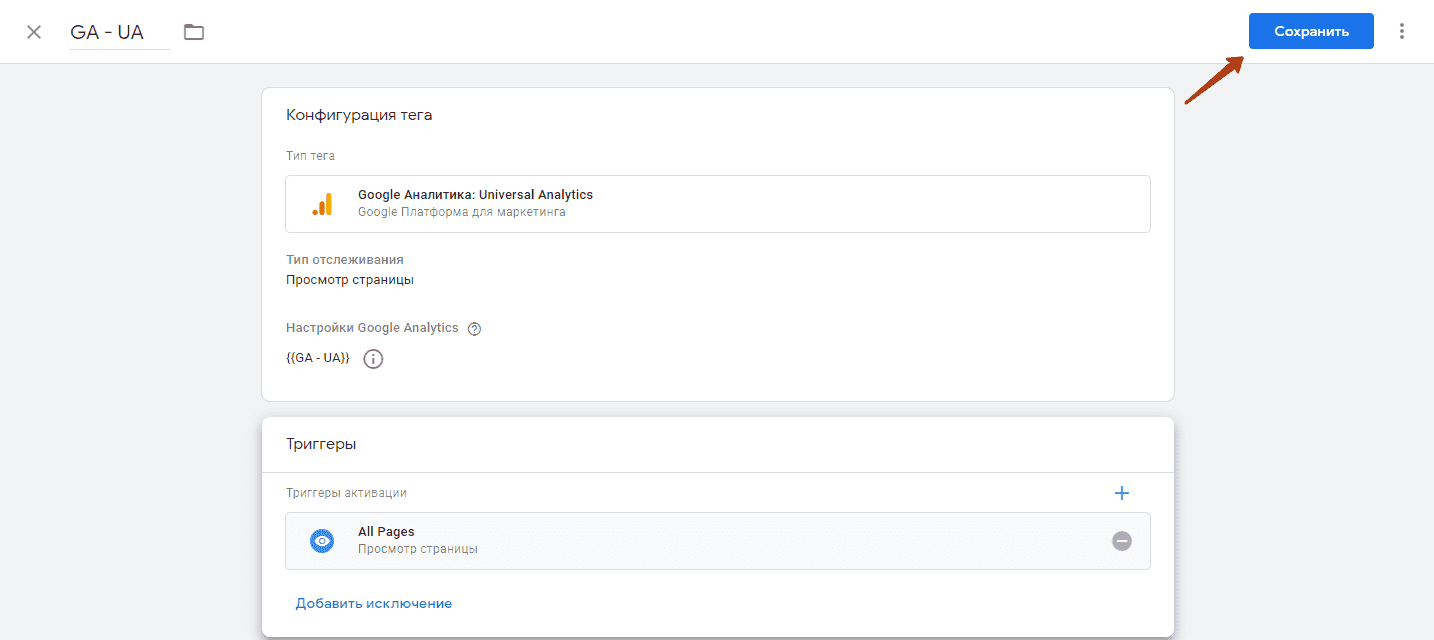
Click “Send”

And publish the change to the container
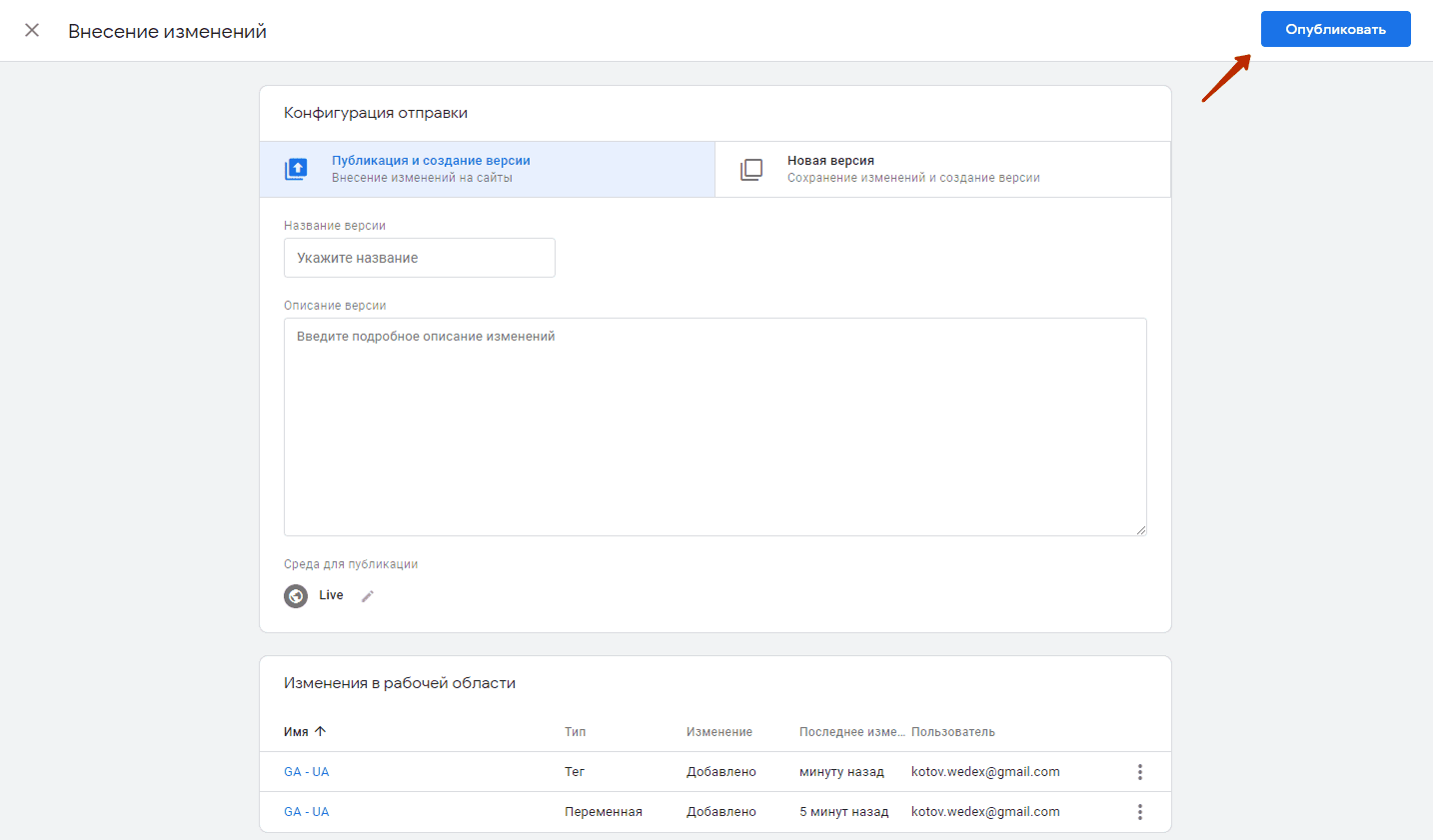
The Google Analytics 4 counter code is installed on the site. It is also possible to check whether the meter is installed correctly:
- Via the built-in debugger
- In its own interface. To do this, you need to go to the website and also open an overview of the report in real time in analytics.

commercial offer
Other articles by the author

25/07/2024
Hackers can not only steal confidential information, but also damage websites, as not only data is lost, but also customer trust and company reputation. Therefore, ensuring reliable protection against attacks and regular security monitoring is critical for every online resource.

14/08/2024
Viewing a competitor's profile has already become a standard practice, but it's almost impossible to view their stories anonymously. Why is it almost impossible?
Because there are a number of tools that allow you to remain invisible, from online services and browser extensions to tricks like using airplane mode.

21/11/2024
Creating a business page on Facebook opens up new opportunities for almost anyone. However, before you start using the social network, it is important to conduct an in-depth analysis of your product, competitors, and their experience. Taking into account all the data obtained, objectively assess the possible results and return on investment.
Latest articles by #GTM

29/09/2026
A content pipeline transforms the creation of content from a spontaneous creative process into a managed production system. In such a system, AI serves as a powerful assistant.

10/09/2026
The 4P model serves as an architectural foundation that transforms disparate marketing activities into a single, manageable system.

08/09/2026
Today, an influencer is a distinct media platform with its own editorial policy, a keen understanding of its audience, and an established level of trust.